
Cleanvoice logo

Cleanvoice

AI audio cleanup for podcasters

72 views
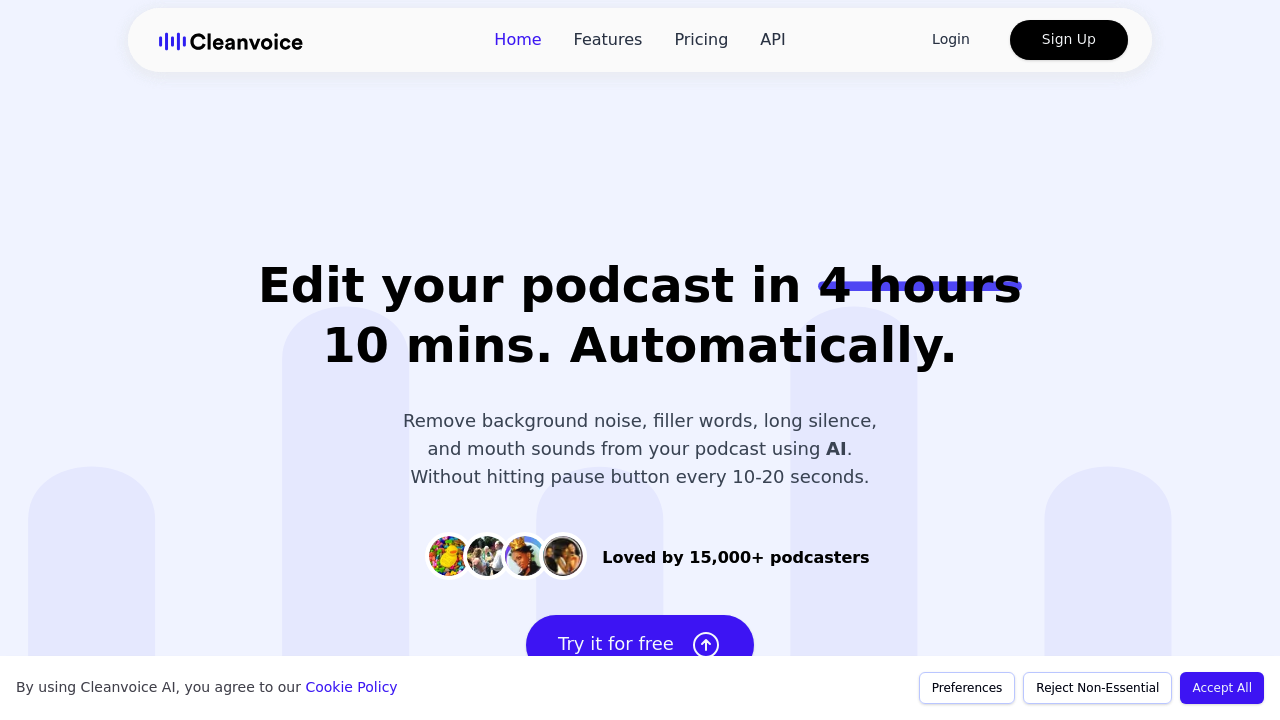
Cleanvoice screenshot

Background noise vanishes. Filler words disappear. Mouth sounds get scrubbed clean. Cleanvoice strips podcasts down to pure content using AI that recognizes everything from honking cars to crying babies.

Processing handles 20+ languages for filler word removal. It tackles the tedious stuff nobody wants to edit manually. Long silences get trimmed automatically. Breathing sounds and mouth clicks disappear without you touching a timeline. What used to take 4 hours of manual editing now finishes in 10 minutes.

Independent podcast producers juggling multiple shows will appreciate the multitrack editing feature. You can upload separate tracks for each guest and let the AI work on them individually. Files don't stick around forever though — you'll need to download your cleaned audio promptly.

Over 15,000 podcasters already use it. Makes sense when you consider the time savings. The free plan gives you 30 minutes of processing without requiring a credit card or even signing up. Just upload and wait.

Cleanvoice also generates transcriptions and show notes automatically. The timeline export feature shows exactly what got removed if you want to manually review changes later. For podcast networks or agencies handling client work, there's an API that 30+ brands currently use.

Positioning as an Adobe Podcast alternative feels accurate given the feature depth and processing quality you get without subscription commitments.

Frequently asked

7 questions
How long can I keep my processed files on Cleanvoice servers?
Files don't stick around on Cleanvoice servers forever. You'll want to grab your cleaned audio files pretty quickly after they're done processing. There's no permanent storage here -- so download your processed podcasts to your own device or cloud storage ASAP.
Can Cleanvoice handle multitrack recordings with separate guest audio?
Yep, Cleanvoice totally supports multitrack editing. You can upload separate audio tracks for each speaker or guest, and the AI processes each one individually. This gives you way more control over the final result -- especially handy if you're managing shows with multiple hosts or remote guests.
Does the timeline export feature show me exactly what Cleanvoice removed from my audio?
The timeline export gives you a detailed breakdown of every single edit the AI made. You can see exactly where it yanked out filler words, mouth sounds, and background noise. Pretty useful if you need to manually review stuff or undo specific changes.
Which languages does Cleanvoice support for removing filler words like 'um' and 'uh'?
Cleanvoice handles filler word removal in over 20 different languages. The AI picks up on language-specific filler words and verbal tics -- not just English 'ums' and 'uhs.' Perfect for international podcasters or anyone creating multilingual content.
How does Cleanvoice's API work for podcast networks and agencies?
The API lets podcast networks and agencies bake audio cleaning right into their existing workflow. Over 30 brands are already using it to process client audio at scale. Basically, you can automate the whole cleaning process without manually uploading files through the web interface every time.
What's included in the free plan besides the 30 minutes of processing?
The free plan hooks you up with 30 minutes of audio processing -- no credit card or signup required. You also get automatic transcription and show notes generation features. Just upload your file and the AI handles noise removal, filler word deletion, plus content generation.
How accurate is the background noise detection compared to manual editing?
The AI spots specific sounds like car horns, crying babies, and other environmental noise that'd normally take forever to edit manually. What used to eat up 4 hours of timeline work now wraps up in about 10 minutes. It tackles complex audio scenarios that are just plain tedious to edit by hand.

Reviews (0)

No reviews yet. Be the first to share your experience.

Similar tools

See all →